Visual Studio Code
Visual Studio Code is a free cross-platform code editor by Microsoft (not to be confused with Visual Studio).
Importing the project
- Make sure the C/C++ extension is installed. You can find instructions in the official documentation. Alternatively, clangd can be used instead.
- When using the clangd extension, run
scons compiledb=yes. - From the Visual Studio Code's main screen open the Redot root folder with File > Open Folder....
- Press
Ctrl + Shift + Pto open the command prompt window and enter Configure Task.
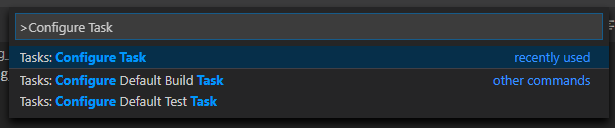
- Select the Create tasks.json file from template option.

- Then select Others.
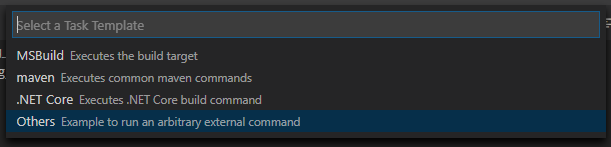
If there is no such option as Create tasks.json file from template available, either delete the file if it already exists in your folder or create a
.vscode/tasks.jsonfile manually. See Tasks in Visual Studio Code for more details on tasks.Within the
tasks.jsonfile find the"tasks"array and add a new section to it:
{
  "label": "build",
  "group": "build",
  "type": "shell",
  "command": "scons",
  "args": [
    // enable for debugging with breakpoints
    "dev_build=yes",
  ],
  "problemMatcher": "$msCompile"
}
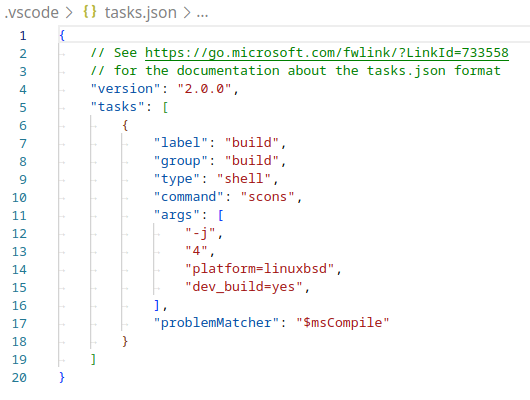
Arguments can be different based on your own setup and needs. See Introduction To The Buildsystem for a full list of arguments.
Debugging the project
To run and debug the project you need to create a new configuration in the launch.json file.
- Press
Ctrl + Shift + Dto open the Run panel. - If
launch.jsonfile is missing you will be prompted to create a new one.
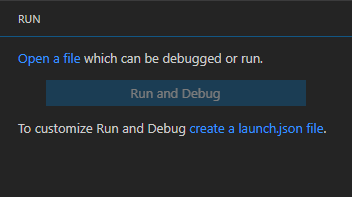
- Select C++ (GDB/LLDB). There may be another platform-specific option here. If selected, adjust the configuration example provided accordingly.
- Within the
launch.jsonfile find the"configurations"array and add a new section to it:
{
  "name": "Launch Project",
  "type": "lldb",
  "request": "launch",
  // Change to Redot.linuxbsd.editor.dev.x86_64.llvm for llvm-based builds.
  "program": "${workspaceFolder}/bin/Redot.linuxbsd.editor.dev.x86_64",
  // Change the arguments below for the project you want to test with.
  // To run the project instead of editing it, remove the "--editor" argument.
  "args": [ "--editor", "--path", "path-to-your-Redot-project-folder" ],
  "stopAtEntry": false,
  "cwd": "${workspaceFolder}",
  "environment": [],
  "externalConsole": false,
  "preLaunchTask": "build"
}
{
  "name": "Launch Project",
  "type": "cppdbg",
  "request": "launch",
  // Change to Redot.linuxbsd.editor.dev.x86_64.llvm for llvm-based builds.
  "program": "${workspaceFolder}/bin/Redot.linuxbsd.editor.dev.x86_64",
  // Change the arguments below for the project you want to test with.
  // To run the project instead of editing it, remove the "--editor" argument.
  "args": [ "--editor", "--path", "path-to-your-Redot-project-folder" ],
  "stopAtEntry": false,
  "cwd": "${workspaceFolder}",
  "environment": [],
  "externalConsole": false,
  "setupCommands":
  [
    {
      "description": "Enable pretty-printing for gdb",
      "text": "-enable-pretty-printing",
      "ignoreFailures": true
    },
    {
        "description": "Load custom pretty-printers for Redot types.",
        "text": "source ${workspaceRoot}/misc/utility/Redot_gdb_pretty_print.py"
    }
  ],
  "preLaunchTask": "build"
}
{
  "name": "Launch Project",
  "type": "cppvsdbg",
  "request": "launch",
  "program": "${workspaceFolder}/bin/Redot.windows.editor.dev.x86_64.exe",
  // Change the arguments below for the project you want to test with.
  // To run the project instead of editing it, remove the "--editor" argument.
  "args": [ "--editor", "--path", "path-to-your-Redot-project-folder" ],
  "stopAtEntry": false,
  "cwd": "${workspaceFolder}",
  "environment": [],
  "console": "internalConsole",
  "visualizerFile": "${workspaceFolder}/platform/windows/Redot.natvis",
  "preLaunchTask": "build"
}
{
  "name": "Launch Project",
  "type": "lldb",
  "request": "custom",
  "targetCreateCommands": [
    "target create ${workspaceFolder}/bin/Redot.macos.editor.dev.x86_64"
  ],
  // Change the arguments below for the project you want to test with.
  // To run the project instead of editing it, remove the "--editor" argument.
  "processCreateCommands": [
    "process launch -- --editor --path path-to-your-Redot-project-folder"
  ]
}
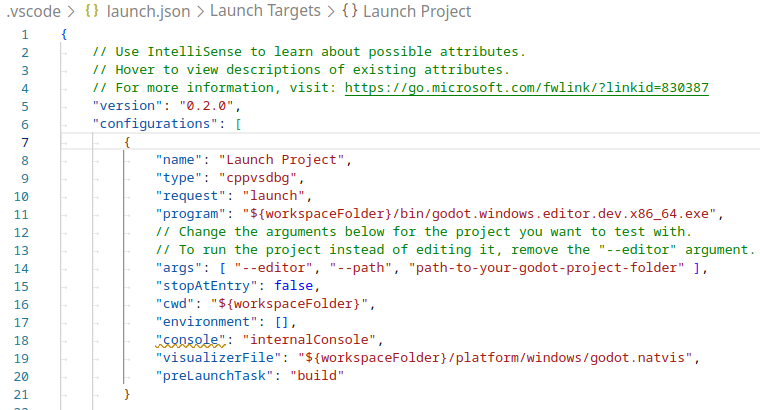
The name under program depends on your build configuration,
e.g. Redot.linuxbsd.editor.dev.x86_64 for 64-bit LinuxBSD platform with
target=editor and dev_build=yes.
Configuring Intellisense
For the C/C++ extension:
To fix include errors you may be having, you need to configure some settings in the c_cpp_properties.json file.
First, make sure to build the project since some files need to be generated.
Edit the C/C++ Configuration file either with the UI or with text:

Add an include path for your platform, for example,
${workspaceFolder}/platform/windows.Add defines for the editor
TOOLS_ENABLED, debug buildsDEBUG_ENABLED, and testsTESTS_ENABLED.Make sure the compiler path is configured correctly to the compiler you are using. See Introduction To The Buildsystem for further information on your platform.
The
c_cpp_properties.jsonfile should look similar to this for Windows:
{
  "configurations": [
    {
      "name": "Win32",
      "includePath": [
        "${workspaceFolder}/**",
        "${workspaceFolder}/platform/windows"
      ],
      "defines": [
        "_DEBUG",
        "UNICODE",
        "_UNICODE",
        "TOOLS_ENABLED",
        "DEBUG_ENABLED",
        "TESTS_ENABLED"
      ],
      "windowsSdkVersion": "10.0.22621.0",
      "compilerPath": "C:/Program Files/Microsoft Visual Studio/2022/Community/VC/Tools/MSVC/14.39.33519/bin/Hostx64/x64/cl.exe",
      "cStandard": "c17",
      "cppStandard": "c++17",
      "intelliSenseMode": "windows-msvc-x64"
    }
  ],
  "version": 4
}
Alternatively, you can use the scons argument
compiledb=yesand set the compile commands settingcompileCommandstocompile_commands.json, found in the advanced section of the C/C++ Configuration UI.- This argument can be added to your build task in
tasks.jsonsince it will need to be run whenever files are added or moved.
- This argument can be added to your build task in
If you run into any issues, ask for help in the Redot discord server.