Android Studio
Android Studio is a free IDE for Android development made by Google and JetBrains. It's based on IntelliJ IDEA and has a feature-rich editor which supports Java and C/C++. It can be used to work on Redot's core engine as well as the Android platform codebase.
Importing the project
- From the Android Studio's welcome window select Open.
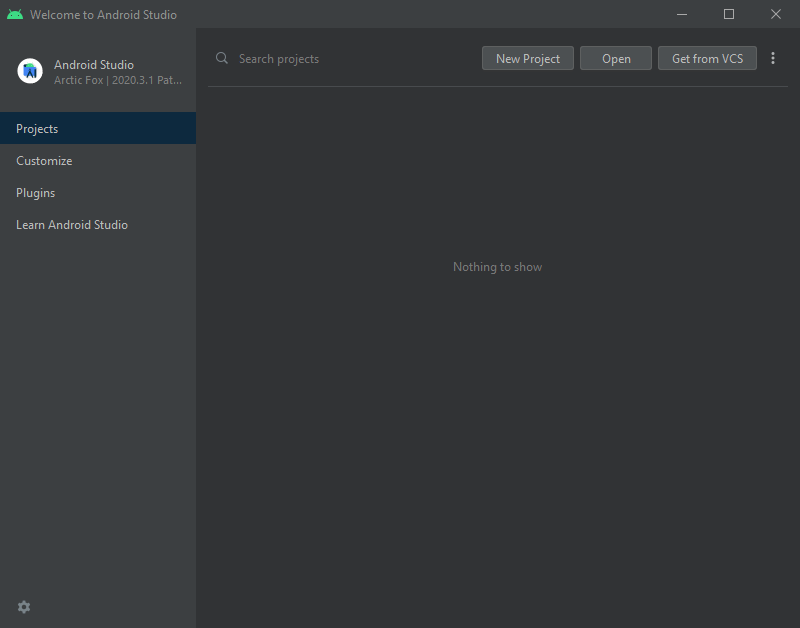
- Navigate to
<Redot root directory>/platform/android/javaand select thesettings.gradlefile. - Android Studio will import and index the project.
Android Studio project layout
The project is organized using Android Studio's modules:
libmodule:- Located under
<Redot root directory>/platform/android/java/lib, this is a library module that organizes the Redot java and native code and make it available as a reusable dependency / artifact. - The artifact generated by this module is made available for other Android modules / projects to use as a dependency, via MavenCentral.
- Located under
editormodule:- Located under
<Redot root directory>/platform/android/java/editor, this is an application module that holds the source code for the Android port of the Redot Editor. - This module has a dependency on the
libmodule.
- Located under
appmodule:- Located under
<Redot root directory>/platform/android/java/app, this is an application module that holds the source code for the Android build templates. - This module has a dependency on the
libmodule.
- Located under
Building & debugging the editor module
- To build the
editormodule:- Select the Run/Debug Configurations drop down and select
editor.
- Select the Run/Debug Configurations drop down and select
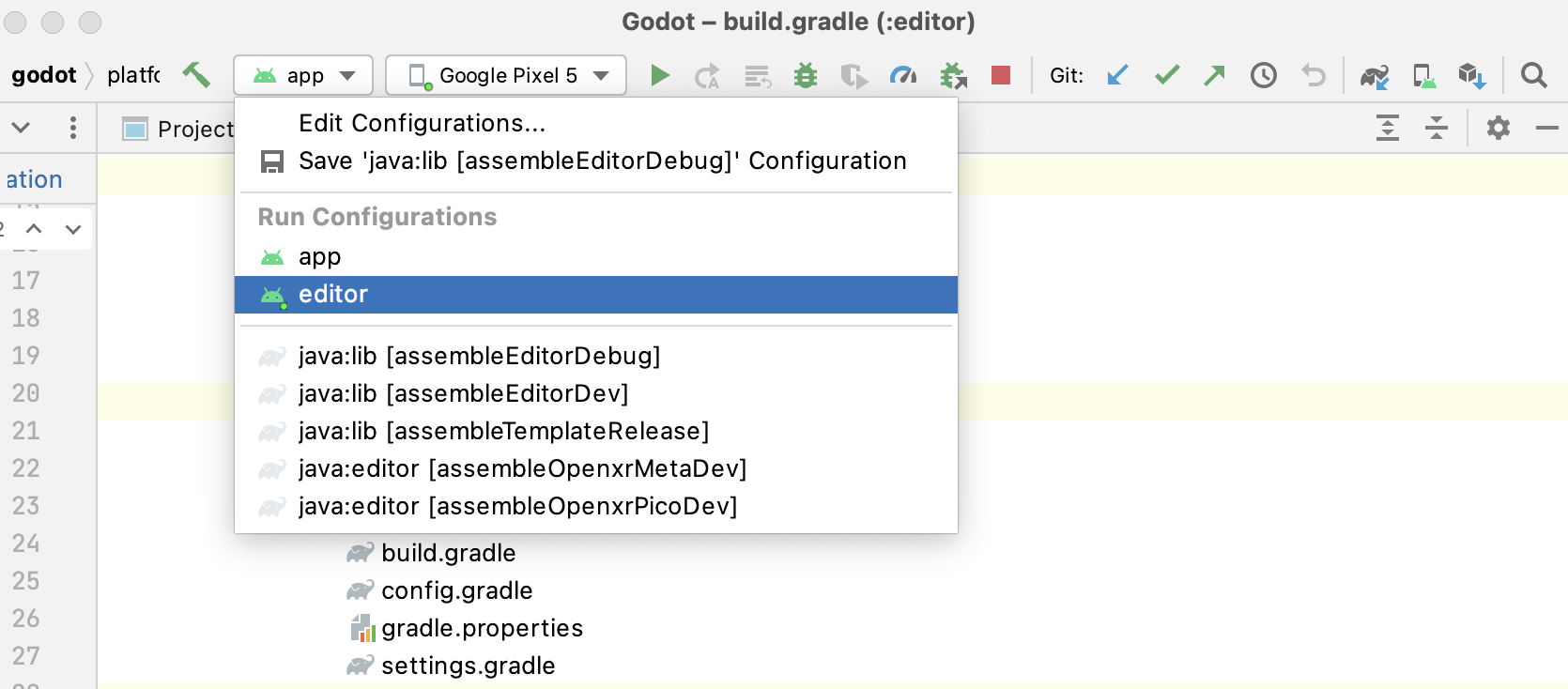
- Select Run > Run 'editor' from the top menu or click the Run icon.
- To debug the
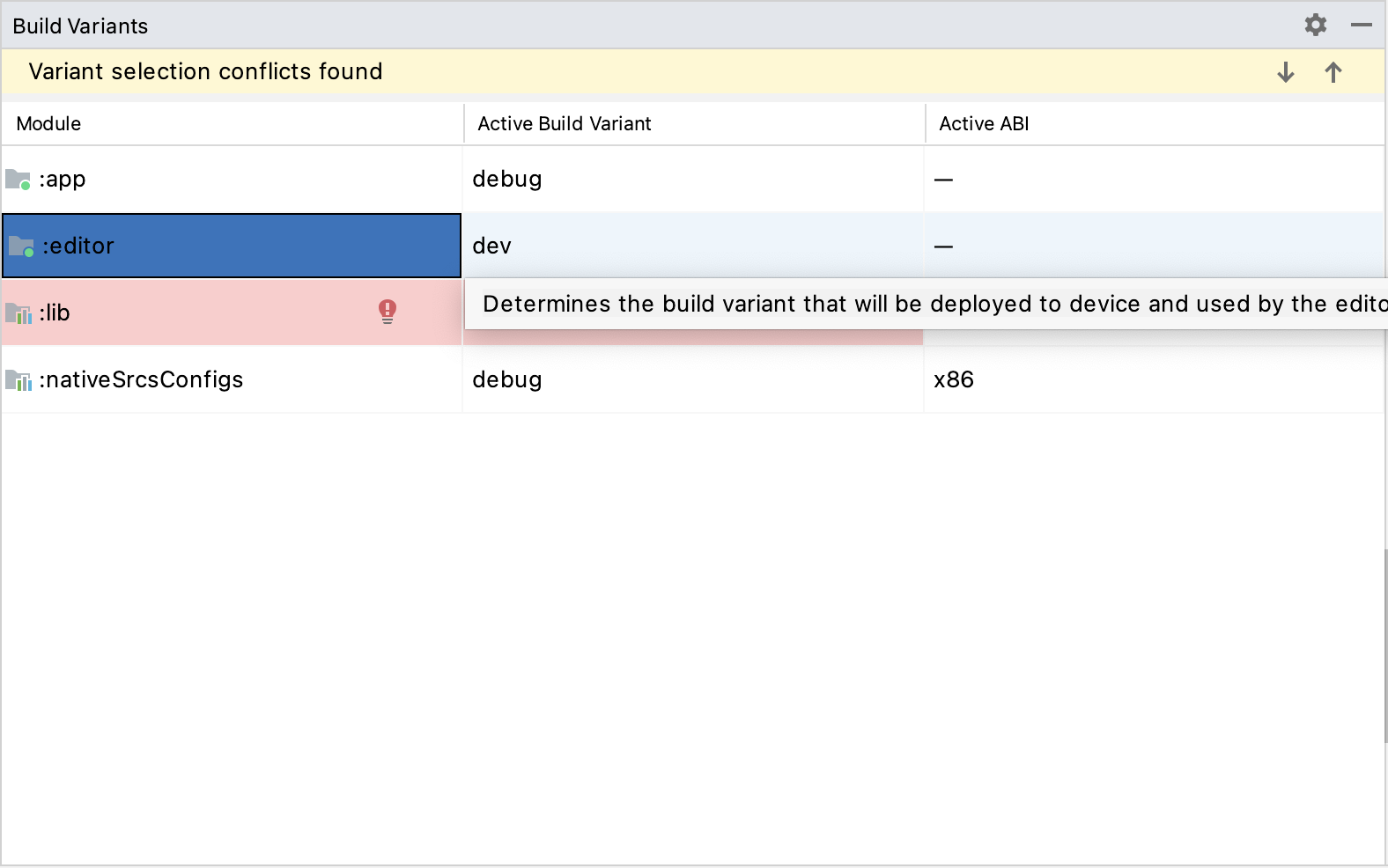
editormodule: - Open the Build Variants window using View > Tools Windows > Build Variants from the top menu.
- In the Build Variants window, make sure that in the Active Build Variant column, the
:editorentry is set to dev.
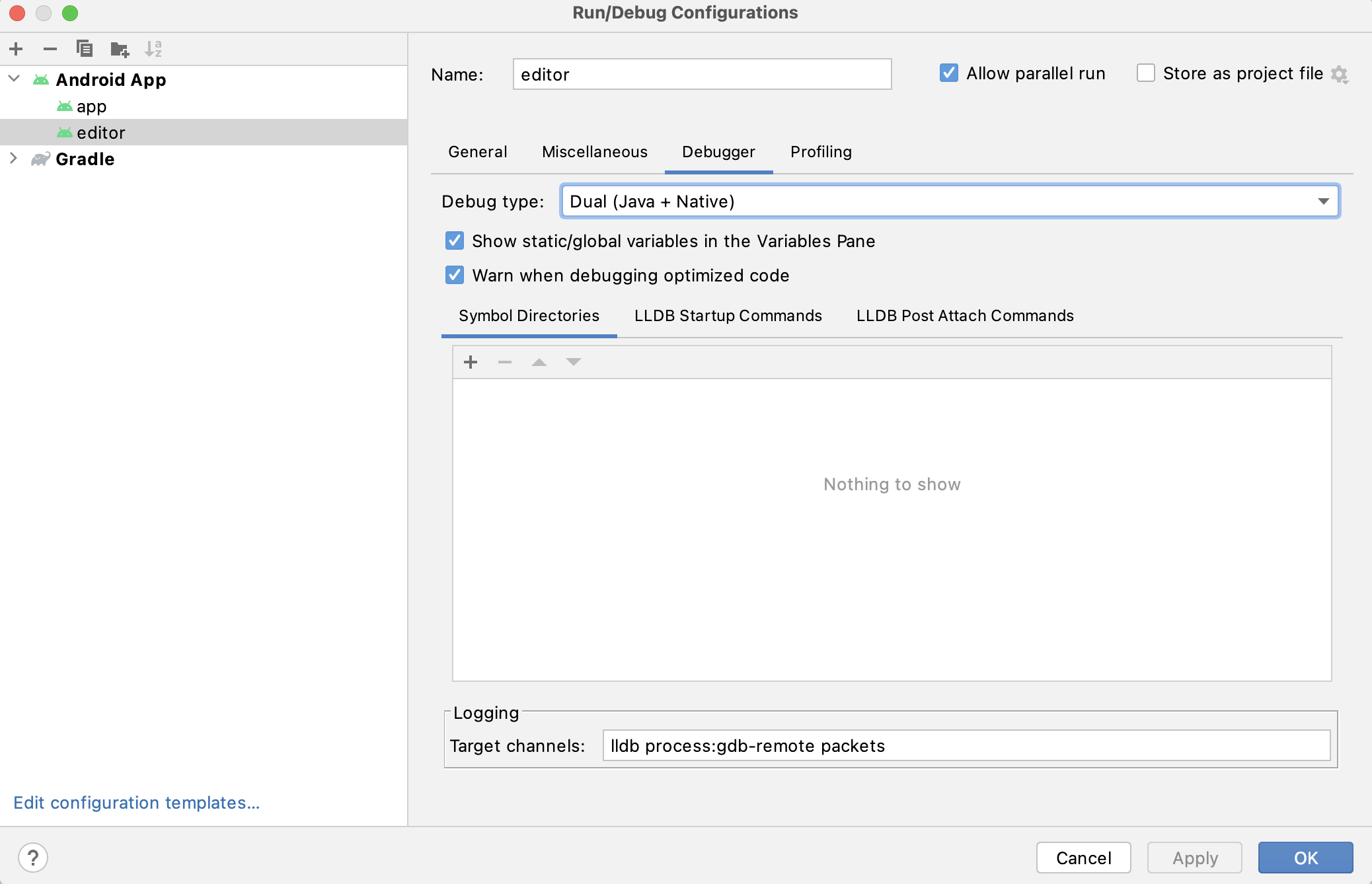
- Open the Run/Debug Configurations window by clicking on Run > Edit Configurations... on the top menu.
- In the Run/Debug Configurations window, select the
editorentry, and under Debugger make sure the Debug Type is set toDual (Java + Native)
- Select Run > Debug 'editor' from the top menu or click the Debug icon.
Building & debugging the app module
The app module requires the presence of a Redot project in its assets directory (<Redot root directory>/platform/android/java/app/assets) to run.
This is usually handled by the Redot Editor during the export process.
While developing in Android Studio, it's necessary to manually add a Redot project under that directory to replicate the export process.
Once that's done, you can follow the instructions below to run/debug the app module:
- To build the
appmodule:- Select the Run/Debug Configurations drop down and select
app.
- Select the Run/Debug Configurations drop down and select
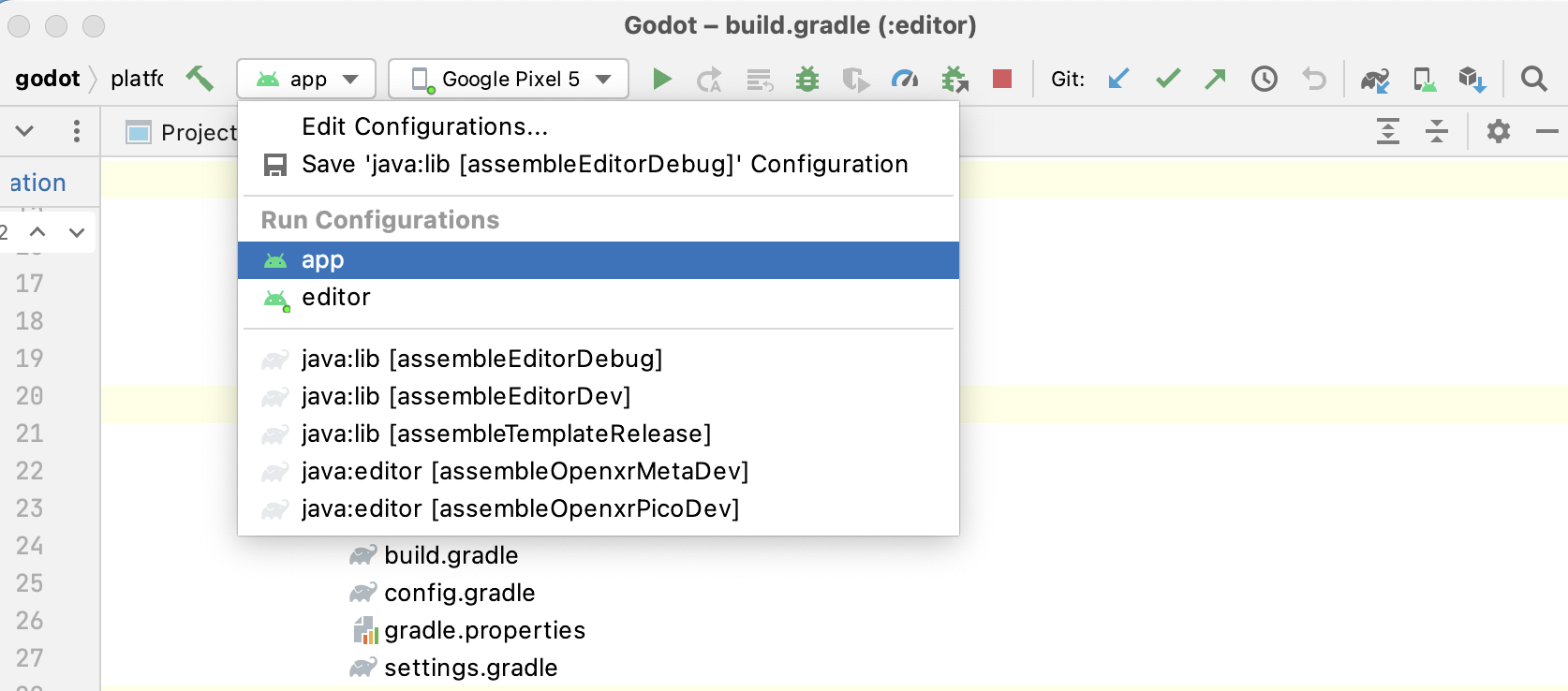
- Select Run > Run 'app' from the top menu or click the Run icon.
- To debug the
appmodule: - Open the Build Variants window using View > Tools Windows > Build Variants from the top menu.
- In the Build Variants window, make sure that in the Active Build Variant column, the
:appentry is set to dev.
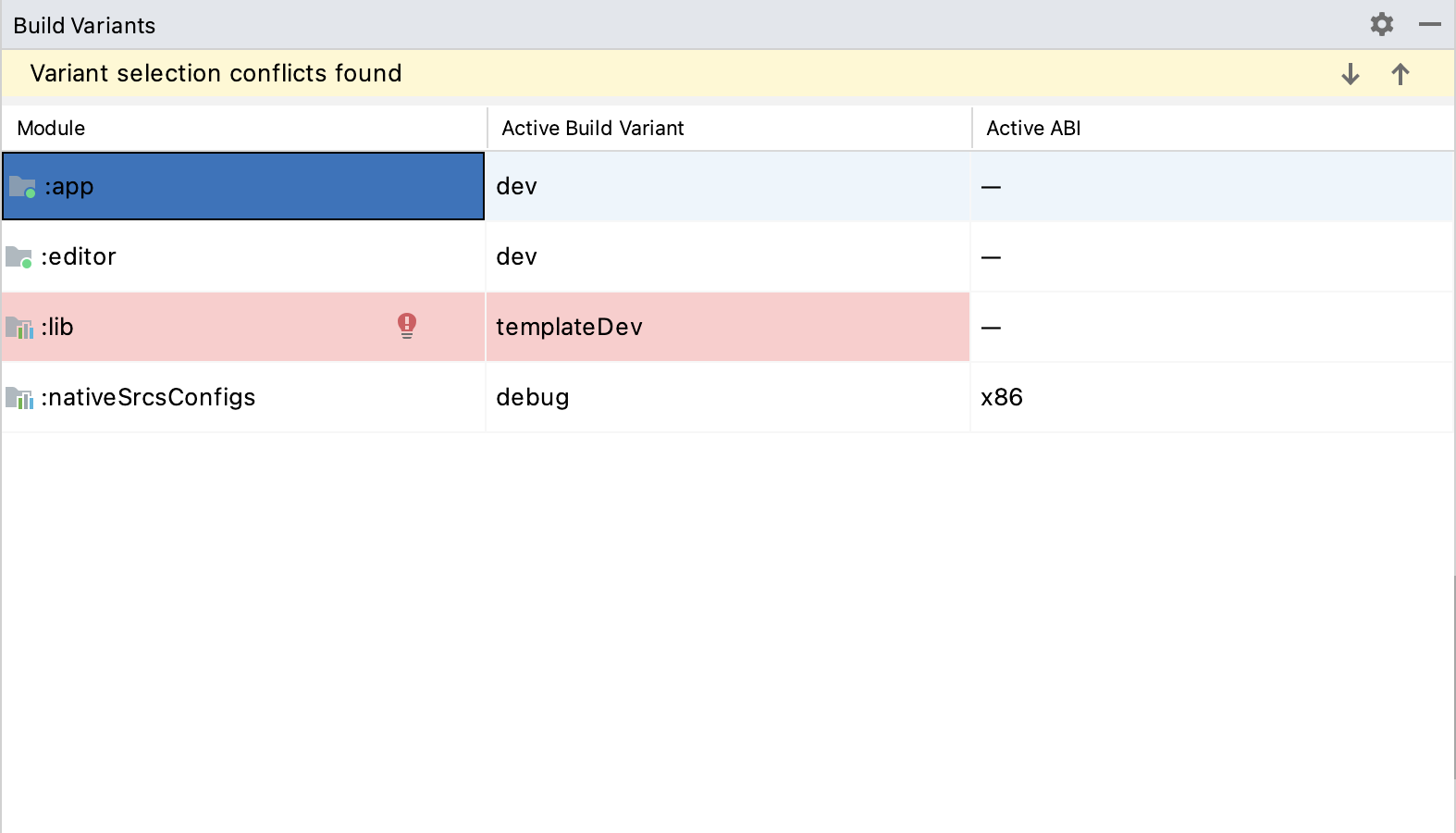
- Open the Run/Debug Configurations window by clicking on Run > Edit Configurations... on the top menu.
- In the Run/Debug Configurations window, select the
appentry, and under Debugger make sure the Debug Type is set toDual (Java + Native)
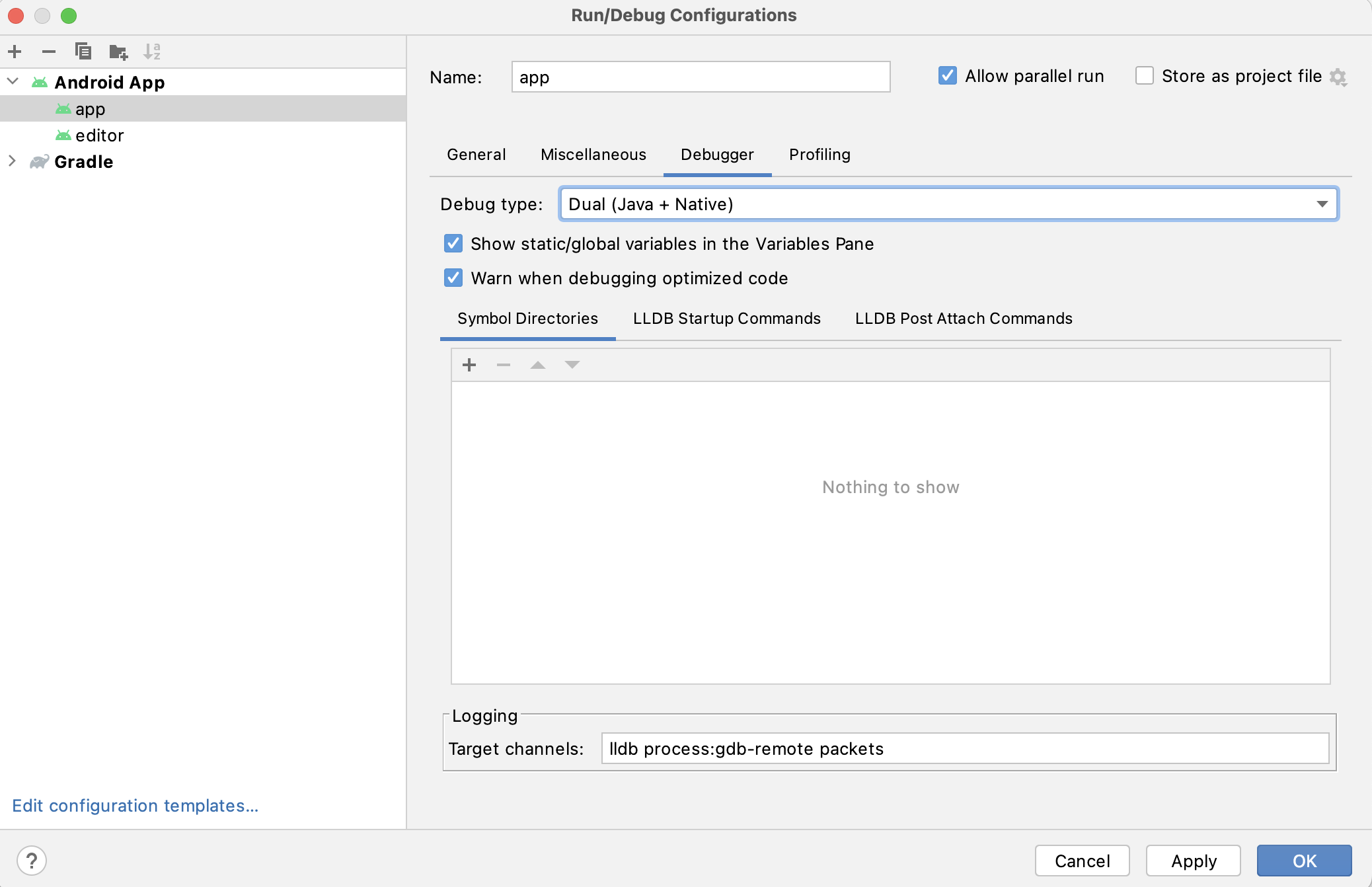
- Select Run > Debug 'app' from the top menu or click the Debug icon.
If you run into any issues, ask for help in the Redot discord server